
Training video
If you prefer to watch a video then some of the basic tips below are included here.
The video has chapters to easily find what you are looking for.
Getting started
The login page for your website will be your url with /wp-admin at the end (for example yourwebsite.com/wp-admin).
Please note if your site is in development there will be a different URL to the final one when the site goes live. Your username and password will be the same.
When you’re logged in, the first thing you will see is the Dashboard – this is a summary page for your WordPress installation. It can be customised, but by default it should show things like Recent Activity, and WordPress News.
The most important part of the user interface (UI) is the bar on the left. This is the main navigation for the WordPress back-end. It will have a list of several sections, beginning with the types of content on your website. This will vary depending on your site. For example your site may have the following:
- Posts
- Pages
- Events
- Blog
It then has links to WordPress settings, Appearance options, User settings, and custom plugin options. Be careful with changing settings. If you’re not 100% sure what something does, it may be best to leave it alone. Editing content is a lot more flexible and forgiving, there is very little you can ‘break’ just by editing content.
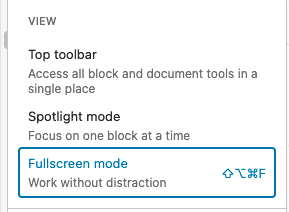
If you can’t see the bar on the left, click the 3 dots at the very top right of the page

And click Fullscreen mode so it is unticked:
Users
Users are people who have access to the back-end or admin part of your website. If you do not see a specific option, bear in mind that only users who have a role of Administrator can change important settings. Users who are Editors can usually only edit content. This control is set up in Users, where new users can be added, and existing users can have their role changed, password changed, etc.
Types of content (post types)
It is important to have a good understanding of the available content types in your WordPress before making changes, or more crucially when adding new content. Almost every WordPress site we make has its own bespoke set of content types. The main default content types are Posts and Pages. The difference is sometimes a bit tricky to understand, aside from the name, but Pages are usually ‘static’ types of content that are are individual stand-alone resources, they do not usually share common data. General articles about your organisation will usually be set up as Pages. On the other hand, Posts are more flexible, but generally used for things like Blog pages and News items. Posts can also be highly customised, and may have much more going on than just an article of text. Posts can also have Tags and Categories, these are a type of Taxonomy, which is a fancy name for classification, or categorisation.
In addition to Posts and Pages, your website may have custom post types set up. These are even more customised versions of Posts, so customised they have their own name and rules. They have different fields (places to add data) and are being used in specific and unique ways.
Please note that the content types do not necessarily correspond exactly with the front-end navigation, i.e. posts of the same type may be output in different sections of your site on the front-end.
Explore our tutorials…
Glossary of terms
| Back end | The back end is the area that authorised users can sign into to add, remove and modify content on the website. This may also be referred to as “WordPress”, “admin” or “the administration area”. |
| Block | The abstract term used to describe units (e.g. a paragraph or an image) that, composed together, form the content or layout of a webpage. |
| Category | Each post in WordPress can be filed under one or more categories. Thoughtful categorization allows posts to be grouped with others of similar content and aids in the navigation of a site. |
| CMS | A Content Management System, or CMS, is software for facilitating the maintenance of content, but not design, on a web site. A blogging tool is an example of a Content Management System. |
| Content | Content consists of text, images, or other information shared in posts. This is separate from the structural design of a web site, which provides a framework into which the content is inserted, and the presentation of a site, which involves graphic design. A Content Management System changes and updates content, rather than the structural or graphic design of a web site. |
| Developer | A developer, or dev, is a computer programmer who is active in creating, modifying, and updating a software product. |
| Development | This is the work that the developer is doing and is often referred to as the period of time when the site is being built. You may hear “development site” which is the version of the site not yet completed. |
| DNS | DNS, the domain name system, is the system that maps domain names to IP addresses. When you use a web browser to visit a website, your browser first extracts the site’s domain name from the URL. Then it uses the DNS to find the IP address for that domain name. Then it connects to that IP address. |
| Domain name | A domain name is a name used for identification purposes on the Internet. In WordPress, a domain name usually identifies a server where WordPress is installed. See also URL. |
| Draft | The draft post status is for WordPress posts which are saved, but as yet unpublished. If saved as a draft, this page will not be visible from your website unless you have directly shared the link with them. It will not be indexed on search engines so people won’t find this page accidentally. |
| Excerpt | An excerpt is a condensed description of your blog, news or event post and is often displayed when you have a list of content such as a news or blog feed. |
| External link | An external link means any link which is from another website which is not your own. |
| Feed | A feed is a list of content that is pulled through from other areas of the site. This is usually used in News or Events |
| Filter | Filters are words or short pieces of text which users can click on to reduce a large list of content. These are set by using categories and tags. |
| Footer | A footer area is a horizontal area provided by a theme for displaying information other than the main content of the web page, this appears on every page of the site automatically at the bottom. |
| Front end | The front end is what your visitors see and interact with when they come to your website. |
| Gutenberg | Gutenberg is the recently developed, block-oriented editor. The name comes from the inventor of the printing press Johannes Gutenberg as the editor uses the same “block” principle from printing. |
| Header | A header area is a horizontal area provided by a theme for displaying information other than the main content of the web page. This appears at the top of the page and can differ in content per page but usually has a similar style across the site. |
| Header image | A Header Image is a wide picture that appears at the top of a website within the header section. |
| Menu | Menus are lists of links to pages and posts that appear on the website. |
| Navigation | Navigation is the term used to describe text on a page that, when selected, redirects you to a corresponding page elsewhere on the website. It encompasses the top menu and also any other menus and links that appear across the site. |
| Page | A Page is often used to present “static” information about yourself or your site. It is usually not updated very often |
| Pattern | Patterns are layouts of blocks that can be inserted as starter content that are meant to be changed by the user every time. |
| Plugin | A Plugin is a group of PHP functions that can extend the functionality present in a standard site. |
| Post | Also known as “articles” and sometimes incorrectly referred to as “blogs”. In WordPress, “posts” are articles that you write to populate your blog or post. Posts are usually updated more regularly than Pages. |
| Post settings | A sidebar region containing metadata fields for the post, including scheduling, visibility, terms, and featured image. |
| Post type | Post type refers to additional types of content that you might have outside of Posts and Pages. A common example of this would be Events but your website may have more examples. |
| Private page | A page can be saved privately so that only people with logins can view it. |
| Role | A role gives users permission to perform a group of tasks. The website can include multiple different roles with different levels of permissions. You will usually have 1 or 2 Administrators who can edit more parts of the site than other people. The most common type of role is an Editor who can perform most tasks to update the content on the site but cannot for example add new users. There are also roles with less permissions such as Author or Translator who can only add content in very specific places. |
| Sidebar | A sidebar is a vertical column provided by a theme for displaying information other than the main content of the web page. |
| Slug | A slug is a few words that describe a post or a page and appears after the / in the URL e.g. www.website.com/this-is-a-slug The term “slug” comes from the use of the printing press where spaces were added into the text. |
| Tag | A Tag is a keyword which describes all or part of a Post and is used to group content together under a theme. |
| Taxonomy | A taxonomy allows for the classification of content in a particular order or hierarchy. |
| Template | In WordPress, a template is a file that defines an area of the web pages generated by a theme which has been created by a developer. Your pages will use templates to make sure they look how they are supposed to. |
| Toolbar | The Toolbar is the black area of the screen just above the site that lists useful administration screen links such as add a new post or edit your profile. It will only show when a user is logged in to the site. |
| URL | An address of a specific Web site or file on the Internet. |