
- If you are viewing the site from the front end (and are logged in) you will see ‘Edit page’ in the black bar at the top
- If you are already in the back end select Pages from the main left hand side menu
- Here you will find the static pages of your site e.g. About, Contact us etc..
- Click a page to edit it – a page with a dash before the title means it is a sub page of the one above.
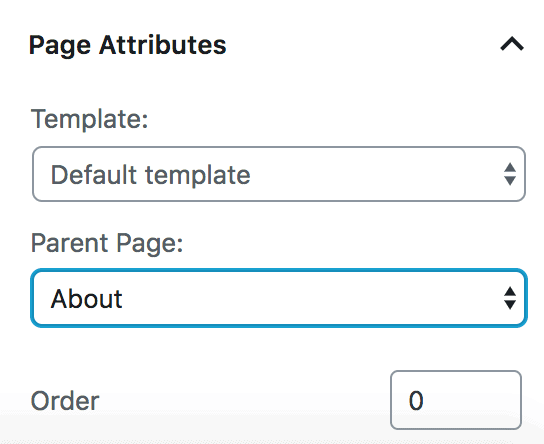
- To make the page you are editing a sub-page (known as a child page) of another page (known as a parent page) select the page from the ‘parent page’ drop down menu in the Page Attributes box on the right. For example the following image shows a page that is a sub page of About:
Take care when pasting text from another site or document, as it may retain some bits of code/mark up which will interfere with the site coding and therefore the styling on the page. If this happens you can paste as clean/plain text by using Ctrl+Shift+V. Note that this will strip out all formatting (e.g. headings and links) so you will need to go back and add them in.
- It is important to get these pages in the right place, so that any crumbtrails or “back” buttons work as intended.
- Note that this doesn’t automatically add the pages to the dropdown menus – see Menus for this
Accidentally deleted something? Don’t worry!
If you delete a page or post you will be able to retrieve them from the trash can for up to 30 days.
Select Trash at the top of the list of Posts/Pages, find the deleted item and click restore.

