
Menus from 2022 onwards
Please note that even if your site was released in 2022 – 2023 it may still use the classic method.
If your site doesn’t use the classic method outlined below refer to this guide
Classic WordPress menus (pre-2022)
- Adding a page under Pages will not automatically add it to a menu
- This must be done manually under Appearance > Menus
- Select a menu to edit from the drop down menu, here you will see all menus that appear on the site
- All the pages are listed underneath as blocks, the ones that are indented appear as child pages of that section (will appear in the drop downs)
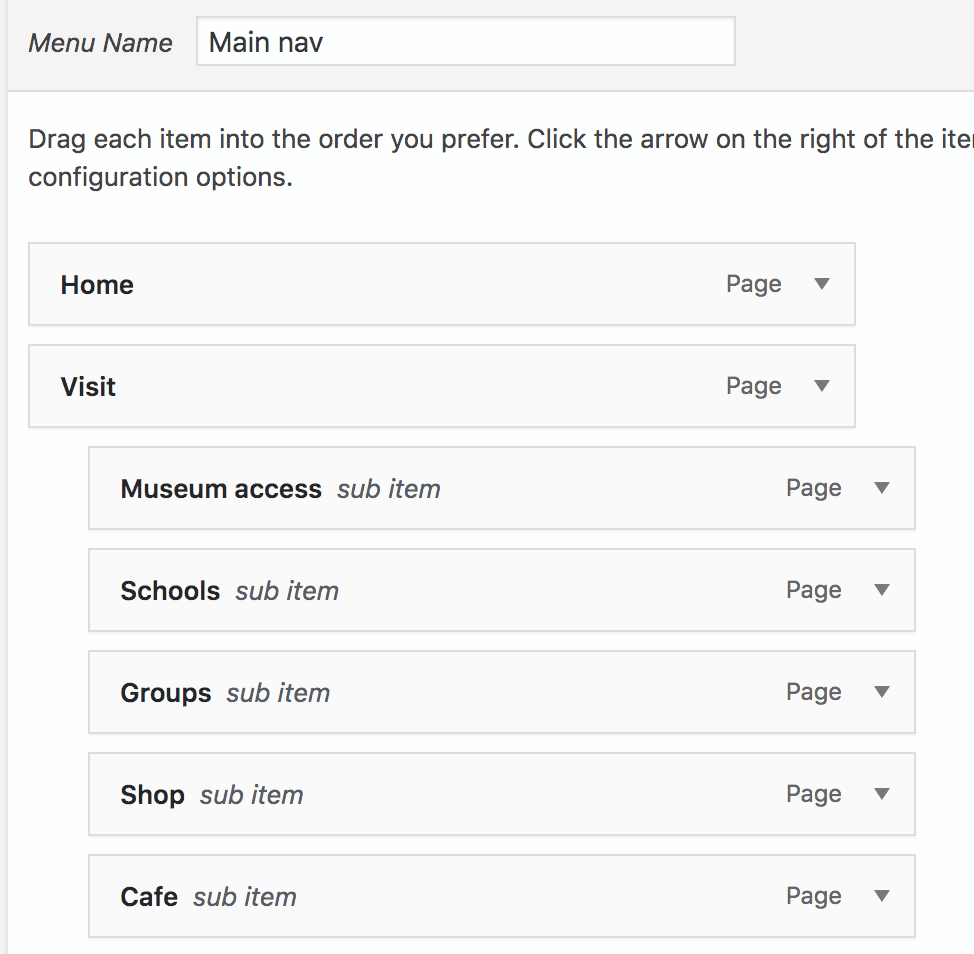
- You can re-order pages by clicking and dragging
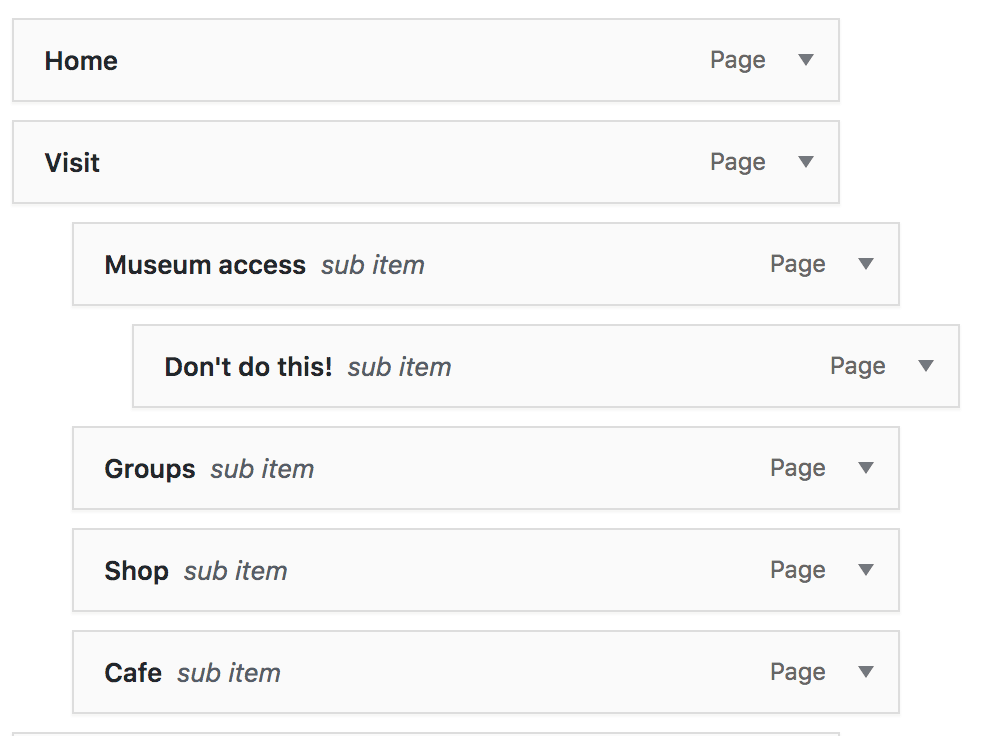
- Try not to go above 2 levels of indentation
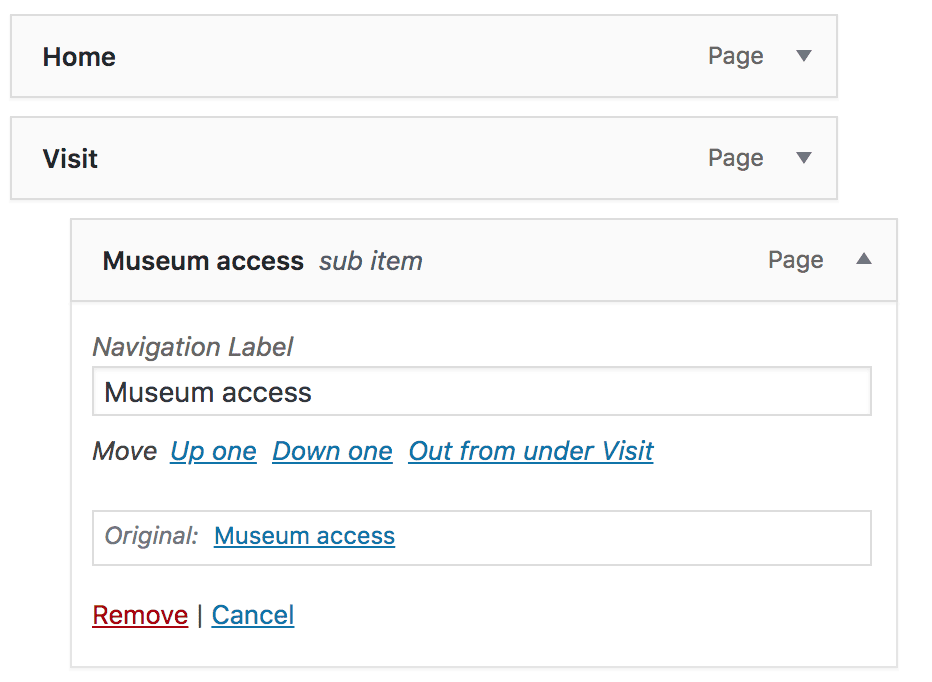
- By clicking the downward arrow on the right you can rename the page, or Remove it (this will remove the page from the menu, it will not delete the page itself)
- To add pages you can search and select them from the list on the left hand side
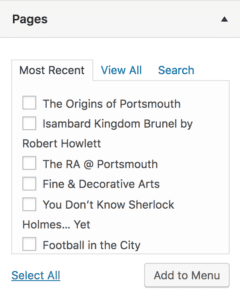
- Select the page using the checkbox and click Add to Menu
- The page will appear at the bottom, drag to where you want it to be
- Do not add any extra top level pages to the Primary Navigation menus without checking with the developer, as this may break the layout.