
Adding blocks
Gutenberg is the editor from WordPress and uses blocks (like printing blocks) to build the content on the page. These include Paragraphs, Headings, Images and other media.
- Your site will likely include native blocks which come “out of the box” and styled according to your site design as well as custom blocks that we have developed specifically for you. Refer to your specific editing instructions on your site for more detail on these.
- You can copy blocks and paste them into other pages
- To select the block make sure you have selected the whole block and not just parts of it. Click anywhere on the block and look for the crumbtrail along the bottom of the editing page, you will see it will have groups within groups:

Select the first group in the trail (this is the highest parent group):
The whole block will now be selected
You can also use the list view to select the parent block, see instructions for both methods as well as how to move blocks around the page. - click the 3 dots top right, select Copy block
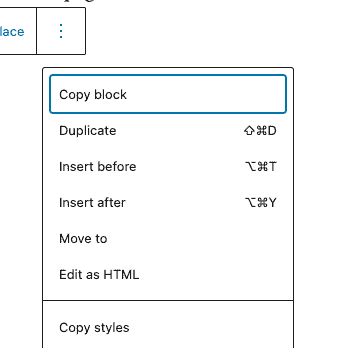
- Paste (Ctrl V) into any page or post. This is really handy in speeding things up.
It can sometimes be fiddly to insert blocks exactly where you want on the page. A handy tip is to select a block as outlined above and the click the three dots then “Insert before” or “Insert after”. This will place the cursor in the correct position where you can go ahead and add your next block or pattern.
- Blocks can be added in a couple of ways – either via a plus sign on the page – where you see the 6 most recent blocks you have used and a search facility.
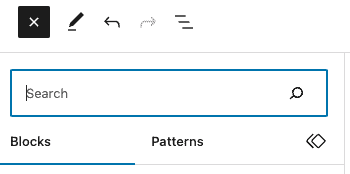
- Or by the plus sign located at the top left of the page you are editing – where you will see a list of all the blocks available and a search facility
- Alternatively if you know the name of the block you can type a slash / and start typing the name of the block.
- Once on the page blocks can easily be moved around, you can do this by either selecting the block (see above to make sure you are successfully selecting the whole block) and clicking the up or down arrows

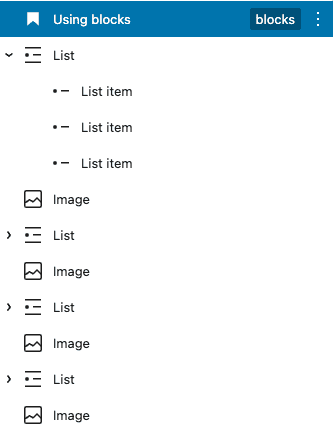
- Or you can see the whole structure of the page as a list by clicking the 3 lined icon at the top of the page

- You can drag and drop elements to move them around via this list. Below shows the list structure of this section of this page:
Using patterns
Your site may also contain Patterns, these are WordPress’s version of templates, a collection of blocks that can be put onto the page and then the content edited. These are also accessed by clicking the plus sign at the top left (seen above).
Refer to your specific editing instructions on your site for details on the patterns used on your site.